Guide
VAT ID and Leitweg-ID Cart Field in Shopify: Setup Guide
Updated 2026-09-30
An EU business customer expects an invoice without German VAT, and a German public-sector buyer needs an XRechnung addressed with a Leitweg-ID. A standard Shopify checkout, however, has no place to collect either of these. Faktwise closes that gap with a theme app block for your cart page: you add it once in the theme editor, and from then on business buyers can enter their VAT ID and public-sector buyers their Leitweg-ID right where they review their cart. Setup takes about two minutes and works on every Shopify plan. This guide walks you through each click and explains what Faktwise does with the data.
Why collect the VAT ID and Leitweg-ID in the cart
Two pieces of information decide which invoice Faktwise creates for an order:
The VAT ID (USt-IdNr. in Germany) is the number businesses in the EU use to identify themselves for cross-border trade. When a business buyer from another EU country provides a valid VAT ID, Faktwise issues the invoice without German VAT: services are billed under reverse charge (meaning the buyer accounts for the VAT in their own country, §13b UStG), goods as an intra-Community supply (§4 Nr. 1b, §6a UStG). One important scope note: this applies to cross-border B2B sales within the EU. Faktwise does not cover Germany’s purely domestic §13b cases. Our guide to reverse charge for intra-EU sales explains the mechanism, and B2B invoicing with VAT ID on Shopify shows how the pieces fit together.
The Leitweg-ID is a routing identifier German public authorities use to deliver incoming e-invoices to the right internal office. If a public-sector body orders in your shop, Faktwise needs this ID to issue an XRechnung, the XML e-invoice format German authorities require, instead of the usual invoice format.
Without the cart field, these details never reach Faktwise and the order is billed like a regular consumer purchase, with VAT.
Before you start
- Faktwise is installed and you have saved your company details under Settings. That first save completes onboarding; until then the app does not generate any invoices.
- For XRechnung you also need a contact email and an IBAN in Settings, because the XRechnung standard requires the seller’s contact and payment details. If they are missing, an order with a Leitweg-ID is issued as a ZUGFeRD invoice instead and the dashboard shows a notice.
Enable the field step by step
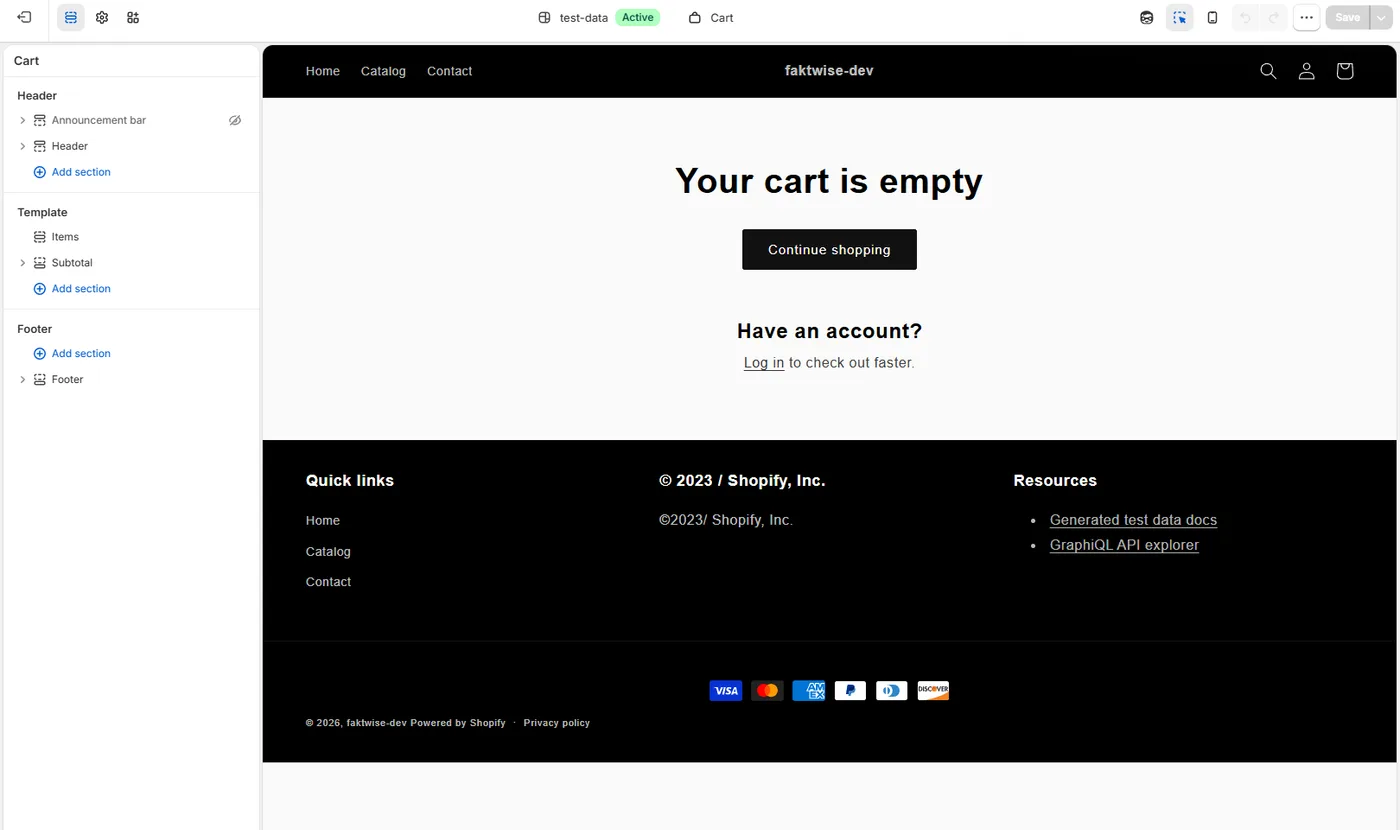
The field is a theme app block that you add once to your cart template:
- In your Shopify admin, open Online Store, then Themes.
- Click Customize on your live theme to open the theme editor.
- In the template picker at the top, switch from the home page to the Cart template.
- Click Add section (in some themes Add block), open the Apps tab and pick Faktwise VAT / Leitweg-ID.
- Click Save. Done.
Tip: the Faktwise settings page has a card that deep-links straight to the right spot in the theme editor, so you can skip the clicking around.
What your buyers see
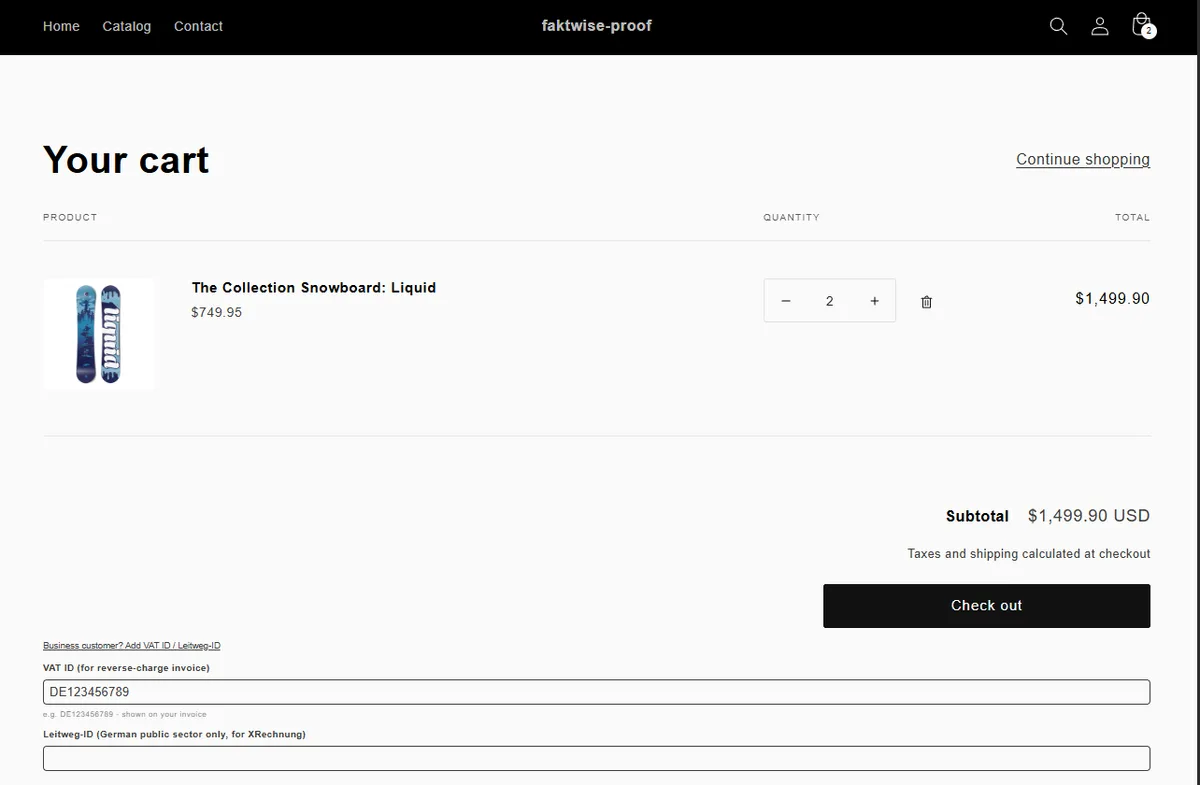
To keep the cart tidy for consumers, the field renders collapsed behind a business-customer toggle. Regular shoppers see no extra form fields at all. A business buyer expands the section and enters their VAT ID, and a public-sector buyer adds their Leitweg-ID. The VAT ID input applies a simple format check: a two-letter country prefix followed by 2 to 12 characters, so obvious typos surface before the order is placed.
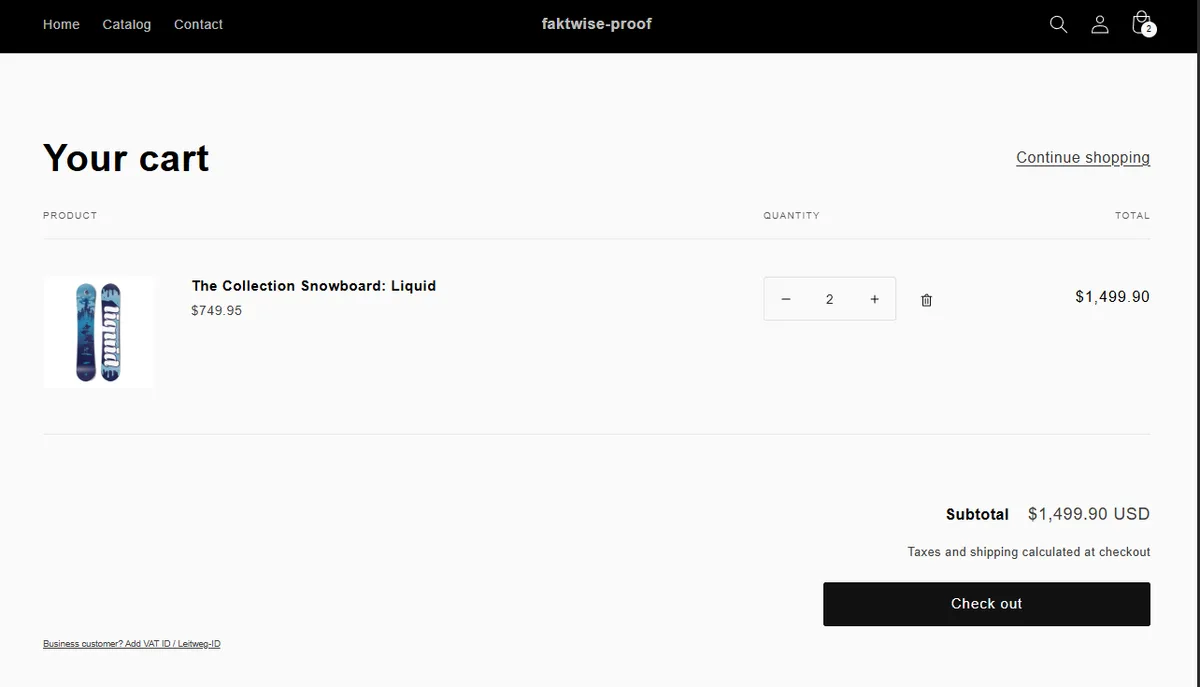
When a business buyer expands it, the input fields appear right in the cart:
What Faktwise does with the data
Faktwise evaluates the cart data when an eligible paid order is permitted for invoicing by your saved rules. Unknown or unselected sources wait under Orders needing review in source-selected shops. The cart field does not change Shopify checkout tax or enable an order source.
- VAT ID present: checked at invoice time using VIES or a shop-specific cached result up to 30 days old. The cart input checks format only, not registration. A consultation number is recorded when supplied. Without confirmed validity, the ID alone does not trigger EU B2B exemption.
- Goods or services: your shop-level setting supplies the default. It does not classify mixed in-person and online products separately for tax.
- Leitweg-ID present: XRechnung also requires seller contact email and IBAN in Settings. Otherwise there is a ZUGFeRD fallback notice; the recipient may not accept that format.
- Nothing entered: other shop and tax settings still apply. Missing verified EU B2B details do not create an exemption.
Works on every Shopify plan
Custom fields in the checkout step itself are reserved for Shopify Plus. That is exactly why the Faktwise field lives on the cart page: the cart template belongs to your theme and can be customized on every Shopify plan, so you do not need Plus for this.
If the field does not show up
Two causes account for almost every case:
- The block was not added, or it was saved in the wrong template. Reopen the theme editor and confirm the block sits in the Cart template, not on the home page or a product page.
- You are looking in the wrong place. The field lives on the cart page itself. To check it, open /cart on your shop directly in the browser.
Two minutes, then it runs on its own
Save the cart block, then review your company, automation and source settings. Only eligible orders allowed by those rules proceed. Existing shops retain their current processing unless they opt into source selection. Check your first issued document and any held orders separately. See the setup guide. Faktwise is software, not tax advice.